
Ieri ho dato libero sfogo alla fantasia ed alle conoscenze su Arduino ed ho montato il mio castello di shield per realizzare un data logging con Arduino
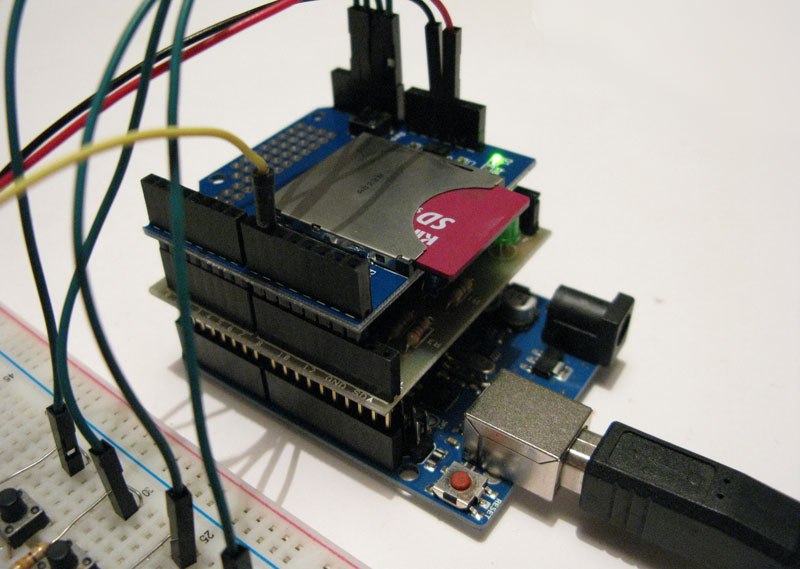
Il progetto in se non è complesso a meno di conoscere bene alcuni concetti quali comunicazione I2C ed SPI, infatti ho deciso di utilizzare una shield SD Card per scrivere i miei dati su una scheda SD da 64Gb, più che sufficienti per qualche line di log in un file di testo, ed un RTC per mantenere l’ora di acquisizione del log.
Procediamo con ordine partendo dal materiale necessario per il progetto di data logging con Arduino:
- n.1 Arduino Uno
- n.1 RTC Shield o altro RTC basato su DS1307
- n.1 SD Card shield
- n.5 pulsanti n.a. ( normalmente aperti )
- n.5 resistenze da 330ohm
- n.1 breadboard
- qualche cavetto per i collegamenti
Definito il materiale devi tener presente che l’RTC utilizza come protocollo di comunicazione l’I2C Bus ossia i pin SDA ( pin A4 ) e SCL ( pin A5 ) di Arduino, alcune Shield hanno la possibilità di utilizzare i 2 pin aggiuntivi SDA ed SCl presenti sulla Arduino Uno R3, tuttavia questi pin sono connessi, a livello arduino, ai medesimi pin A4 ed A5, per cui gli ingressi Analogici corrispondenti non sono comunque utilizzabili.
La scield SD Card utilizza il bus SPI composto dai pin:
D13 SD_CLK
D12 SD_OUT
D11 SD_IN
D10 SD_CS
oltre ai 3.3v e Gnd, alcune SD card utilizzano come pin CS il pin 4, è il caso della Ethernet Shield ufficiale Arduino che oltre ai pin 13,12,11 usa il pin 4 come CS.
Il circuito data logging con Arduino
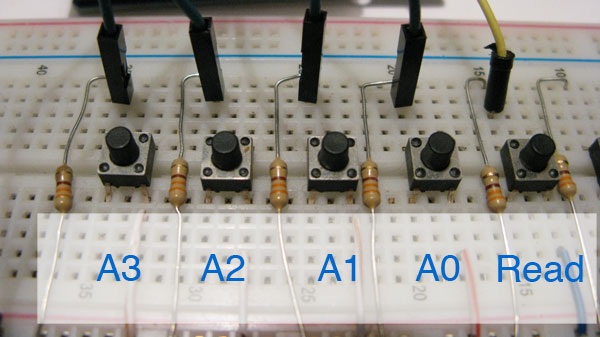
Per il collegamento delle shield arduino non dovresti averlo se utilizzi, come ho fatto io, le shield impilabili per realizzare il tuo data logging, le uniche connessioni da fare riguardano i 5 pulsanti che sono collegati come sempre attraverso una resistenza di pull-down ( verso Gnd ) da 330ohm.
I primi 4 pulsanti li utilizzi per simulare la variazione dei dati sugli ingressi A0,A1,A2 ed A3 mentre il quinto pulsante lo utilizzerai per indicare allo sketch che vuoi ricaricare e leggere il file presente sull’SD Card, lo chiamo infatti pulsante READ, ecco una foto dei pulsanti
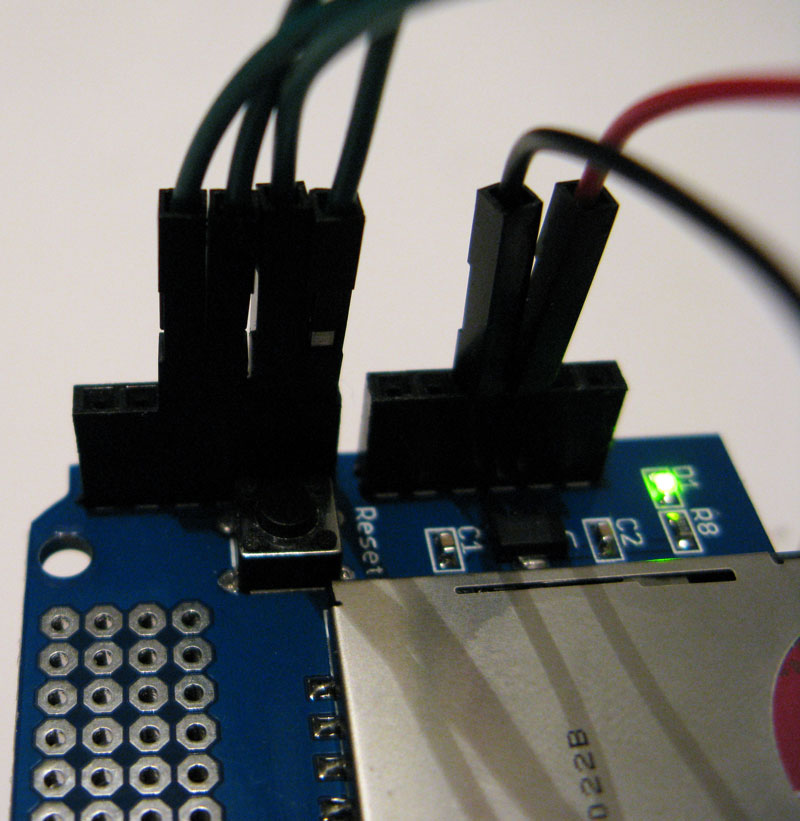
e una delle connessioni agli ingressi analogici
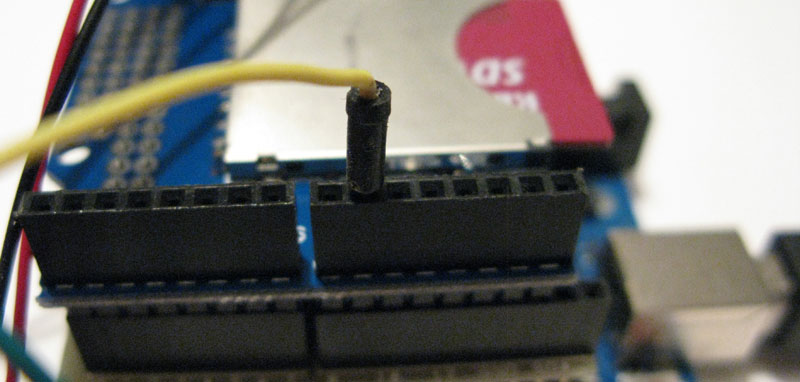
mentre il quinto pulsante ( Read ) devi collegarlo al pin 9 del data logging con arduino
Funzionamento del data logging
Il data logging con arduino è un esperimento per cui ho deciso di utilizzare i 4 pulsanti per simulare il cambio di valori rilevati dall’ADC ( convertitore analogico digitale ) di Arduino, considera che ogni valore convertito dall’ADC sull’Arduino Uno può variare da 0 a 1023 ( 10bit ) e sarà 0 quando il pulsante non è premuto passando a 1023 quando premi uno dei pulsanti.
Il data logging scriverà contemporaneamente sul file di log e sul monitor seriale i dati raccolti dai 4 pin analogici oltre alla data e l’ora in cui il dato è stato raccolto.
Puoi sostituire ognuno dei 4 pulsanti con il sensore che ritieni più opportuno, ho utilizzato volutamente gli ingressi analogici per consentirti di poter rilevare 1024 livelli di segnale da ciascun pin, se avessi utilizzato i pin digitali avrei potuto solo rilevare il passaggio si stato da LOW ad HIGH e viceversa.
Important!
Non puoi utilizzare i pin A4 ed A5 in quanto sono utilizzati per la comunicazione I2C Bus dell’RTC shield.
Download sketch del data logging
Puoi scaricare lo sketch e la libreria RTC che ho utilizzato per questo progetto direttamente da GitHub.
Lo sketch del data logging
// Date and time functions using a DS1307 RTC connected via I2C and Wire lib

#include <Wire.h>
#include "RTClib.h"
#include <SD.h>

#define readButton 9
#define CS 10

RTC_DS1307 RTC;
char buffer[40];

File myFile;

void setup () {
    Serial.begin(57600);
    Serial.print("Initializing SD card...");
    pinMode(CS, OUTPUT);
    pinMode(readButton, INPUT);

    if (!SD.begin(CS)) {
      Serial.println("initialization failed!");
      return;
    }
    Serial.println("initialization done.");

    Wire.begin();
    RTC.begin();
    RTC.sqw(1);		//0 Led off - 1 Freq 1Hz - 2 Freq 4096kHz - 3 Freq 8192kHz - 4 Freq 32768kHz
    if (! RTC.isrunning()) {
      Serial.println("RTC is NOT running!");
      // following line sets the RTC to the date & time this sketch was compiled
      RTC.adjust(DateTime(__DATE__, __TIME__));
    }
}

void loop () {
    DateTime now = RTC.now();

    sprintf(buffer,  "%02d/%02d/%d %02d:%02d:%02d %d %d %d %d", now.day(), now.month(), now.year(), now.hour(), now.minute(), now.second(), analogRead( A0 ), analogRead( A1 ), analogRead( A2 ), analogRead( A3 ) );
    Serial.println( buffer );

    myFile = SD.open("dati.log", FILE_WRITE);
    if (myFile) {
      myFile.println(buffer);
      myFile.close();
    } else {
      Serial.println("error opening dati.log");
    }

    if ( digitalRead( readButton ) == HIGH ) {
        Serial.println(" ");
        Serial.println("Lettura Log Salvato ----------- ");
        Serial.println(" ");
        myFile = SD.open("dati.log");
        if (myFile) {
          while (myFile.available()) {
    	    Serial.write(myFile.read());
          }
          myFile.close();
        }
        delay( 5000 );
    }

    delay(1000);
}
lo sketch del data logging include sia le classi necessarie alla comunicazione con l’RTC sia quelle per utilizzare la SD Card shield:
linee 03-04: includi la classe Wire e la classe RTC per comunicare con il DS1307 attraverso il protocollo I2C;
linea 05: includi la classe SD per leggere e scrivere sulla SD Card con il protocollo SPI;
linee 07-08: definisci a quale pin hai collegato il pulsante che utilizzerai per rileggere il log del data logging e il pin di CS che la tua SD Card utilizza;
linea 10: inizializza l’oggetto RTC;
linea 11: definisci un buffer in cui memorizzerai il tempo ed i valori rilevati. Per calcolare la lunghezza del buffer puoi contare il numero massimo di caratteri che potrà contenere, sai che la data è formata da 10 caratteri ( gg/mm/aaaa ) e l’ora da 8 caratteri ( hh:mm:ss ) e che tra le due c’è uno spazio, poi sai che ogni valore sarà separato da uno spazio per consentirti di leggerli agevolmente e che il valore massimo rilevato su ciascun pin è 1023 ( 4 caratteri ) per cui il calcolo è: 10 + 1 + 8 + 1 + 4 + 1 + 4 + 1 + 4 + 1 +4 = 39 per cui puoi definire il buffer a 40 ( considerando un margine di 1 valore )
linee 16-17: imposta la comunicazione verso il monitor seriale a 57600 baud e scrivi sul monitor seriale la stringa “Inizializing SD card …”
linee 18-19: imposta la modalità di funzionamento per il pin CS ed il pin collegato al bottone di lettura ( pin 9 );
linee 21-24: inizializza l’oggetto SD con il metodo begin e passandole il valore del pin di CS, se non riesce ad inizializzare la SD Card scrive sul monitor seriale “inizialization failed” ed esce dalla funzione di setup mediante il comando return;
linee 27-34: inizializza l’oggetto Wire ed RTC, imposta a 1 secondo la frequenza di lampeggio del led SQW presente sulla RTC Shield e in caso di orario non configurato imposta l’ora corrente del Pc sull’RTC, per la procedura leggi l’articolo Tutorial: RTC Shield con DS1307;
linea 38: imposta un’istanza di tipo DateTime come RTC.now();
linea 40: componi la linea di buffer utilizzando il comando sprintf( buffer, formato, val1, val2 ….valn ) in cui buffer è la variabile in cui memorizzi l’intera stringa, il formato è quello del comando C sprintf ( vedi manuale ), ed i valori successivi sono quelli che vuoi inserire nel buffer;
linea 41: scrivi sul monitor seriale il valore di buffer;
linea 43: apri in modalità di scrittura il file “dati.log” sulla SD Card del data logging
linee 44-46: se il puntatore al file dati.log esiste, ossia se sei riuscito ad aprire la comunicazione con la SD inserita nella SD Card Shield scrivi la stringa buffer e chiudi il file;
linee 47-49: in caso di mancata apertura del file dati.log scrivi sul monitor seriale la stringa “error opening dati.log”;
linea 51: controlla che il valore rilevato sul pin buttonRead sia HIGH vuol dire che il pulsante connesso a questo pin è stato premuto;
linee 52-54: scrivi sul monitor seriale una riga vuota, la stringa “Lettura Log Salvato ————–” ed un’ulteriore riga vuota, serve solo per separare le linee scritte dal normale funzionamento da quelle lette dalla SD Card del data logging;
linea 55: apri il file dati.log in modalità di lettura, infatti non hai specificato alcun parametro come secondo argomento del metodo open;
linee 56-61: se il file è stato correttamente aperto leggi linea per linea il file di log e scrivi il risultato di ciascuna linea sul monitor seriale;
linea 62: imposta un ritardo da 5 secondi ( 5000 millisecondi ) prima di ritornare al normale funzionamento di log;
linea 65: imposta un ritardo di 1 secondo tra un ciclo della funzione loop() ed il successivo.
Il video del data logging con Arduino
Per mostrarti come funziona il data logging che hai appena realizzato puoi guardare il video che ho realizzato in fase di test con il mio data logging:
Buon Log !!!


 Il blog mauroalfieri.it ed i suoi contenuti sono distribuiti con Licenza
102 commenti
7 ping
Vai al modulo dei commenti
Great demo. How would you recommend uploading this data to an FTP site so that it could be graphed in a web page?
Autore
Thank you,
i suggest you use an Ethernet connection.
Mauro
Complimenti per il tutorial, leggendolo mi hai dato l’ispirazione e vorrei realizzare un data logging con arduino uno r3 registrando i dati (stringhe di testo) provenienti tramite seriale rs232 da un gps e da un ecoscandaglio sulla scheda sd.
Collegando il gps (baudrate 9600) e lo scandaglio (baudrate 4800) alla seriale del pc con hyperterminal vedo le stringhe di testo.
Per ora sto registrando i dati con un portatile e un software di data logging ma preferirei, per questione di ingombri e portabilità usare una soluzione con arduino.
Pensi che utilizzando la shield Adafruit Assembled Data Logging e due Interfaccia Seriale RS232-TTL 3-5,5V si riesca facilmente o avrò bisogno di una diversa configurazione hardware?
Enrico
Autore
Ciao Enrico,
grazie per i complimenti.
La shield Adafruit Assembled Data Logging ha al suo interno sia la shield SD Card sia l’RTC, potrebbe essere una buona soluzione, non l’ho mai provata perchè non ne possiedo una e non so dirti se sia più semplice o più difficile realizzare il DataLogging.
Sai che Arduino possiede una sola seriale e che la utilizza già per caricare gli sketch, certo puoi utilizzarla per il datalogger quando è separata dal computer, hai 2 seriali da leggere, a velocità differente, puoi provare simulando la seriale con la libreria SoftwareSerial.h (trovi di tutorial sul blog ) oppure utilizzare un Arduino Mega che ha 4 seriali indipendenti.
Mauro
i want generate arduino data logging based bar code scanner. do have a link?
Autore
No, I do not have links to suggest
Mauro
Neat project and great write-up, thanks for the detail. I imagine this could be quite a disruptive application as commercial data loggers don’t come cheap. Might be fun to do a radiation level logger with the Geiger counter shield 🙂
Paul
Autore
Hi Paul,
you can try a project if you have a counter Gaiger available.
Mauro
Please check line 50. Seems incorrect. Should be:
if(digitalRead(readButton) == HIGH){
Good tutorial. Appreciate that you are sharing with us.
Thanks!
Autore
Thanks for your report, I see no difference between line.
Mauro
Ciao,
grazie alle tue informazioni sono riuscito ad assemblare i vari componenti quali LCD, RTC, modulo SD e sensori di temperatura. Il tutto funziona alla perfezione, volevo però effettuare una modifica al datalogger, vorrei che il file con i dati registrati venga creato ogni giorno con un nome differente, magari con la data del giorno della registrazione (es. 03_05_2013.txt). Puoi gentilmente darmi una mano?
Grazie
Francesco
Autore
Ciao Francesco,
è una modifica un po’ impegnativa ma non impossibile.
Puoi lavorare con le stringe e impostare un nome file differente per ogni giorno.
Ricordati di controllare che il file esista prima di scriverci i valori, questo accorgimento evita che al passare della mezzanotte il nuovo file non sia presente per cui ti consiglio di verificare sempre che il file in cui vuoi scrivere esista e di crearlo in caso non vi sia già
Mauro
Hi there,
I would like to know your recommendation (since I am very new to Arduino), if I want to log some data, say it I sample it every 1 sec, and when it reaches 60 sec, it will average the 60 data, and log it to the SD card for every 1minute, how am I going to do that? I am very confuse now.
I manage to log the data every sec. It means in my SD card, every sec of data has been logged. But the problem is now, I only want to log data for every 1 min after averaged all the 60 sec data. Meaning that in my SD card only has data for every 1 minute. Do you understand me? Thank you in advance for your quick response. I am very looking forward for it. Thank you!
Autore
hello najwa,
i understand your project.
You store values into a variable 60 times per minute and average:
for( int i=0;i<=60;i++) { int val=analogRead( your_pin ); valTotal += val; delay( 1000 ); } valTotal = ( valTotal / 60 ); then write valTotal to the SD card. Mauro
thank you mauro!
now i got the idea! thanks!
Mrss
Salve,
da poco sto utilizzando arduino. La mia intenzione era quella di utilizzare la tecnologia rfid. Ho comprato arduino uno r3, un lettore id20 della innovations e OpenLog della sparkfun. Sono riuscita a far funzionare il lettore rfid con Arduino, riesco perciò a scrivere su seriale l’ID letti dal lettore.
Ora sono passata al secondo blocco del mio progettino: voglio trasferire questi dati su Openlog in modo da salvarli su microsd. Ho letto i suggerimenti di sparkfun, ma ancora non riesco a memorizzare i dati che voglio.
Siccome sono alle prime armi potresti darmi qualche aiuto?
Grazie
Ciao
Autore
Ciao Apprendista,
Il tuo progetto é interessante.
Il tuo nome non é Apprendista, giusto?
Non conosco la OpenLog che stai utilizzando, io nei miei rigetto uso di solito le normali SD card, tuttavia ho letto la Wiki di Sparkfun e mi sembra che lavori sulla comunicazione seriale simulata grazie alla SoftSerial.h con comandi inviati tramite Serial.println( comando );
Che errore ti da?
Mauro
Ciao Mauro,
grazie per avermi risposto. Sono riuscita in questi giorni a far funzionare OpenLog con Arduino per scrivere su seriale con il comando Serial.println(). Uso OpenLog prima in modalità di ascolto e poi in modalità di comando per scrivere su microSd. Il mio problema è ora capire come inviare i dati dal lettore a OpenLog. Non capisco una cosa: conviene che memorizzo i dati uscenti dal lettore prima nella memoria dell’Atmega e poi li passo su OpenLog, oppure posso direttamente registrare su OpenLog definendo i pin di Arduino? Scusa se la domanda può sembrare stupida, ma mi son bloccata quì e non so come proseguire.
Grazie per l’aiuto
Autore
Ciao Apprendista,
mi farebbe piacere conoscere il tuo vero nome .. è strano rivolgersi ad un appassionato/a con uno pseudonimo.
Le tue domande non sono stupide affatto, purtroppo io non ho mai provato la shield OpenLog per cui mi baso solo sulla lettura della descrizione del produttore.
Per decidere in che modalità scrivere è necessario che tu valuti il tempo di campionamento, ossia l’intervallo tra un valore ed il successivo che vuoi memorizzare ed il tempo di scrittura sulla OpenLog.
Ad esempio se per scrivere sulla OpenLog ti serve 1 secondo e campioni a 100 millisecondi con un intervallo di 10 secondi ogni 100 letture ti conviene di certo usare un array da 100 posizioni per memorizzare il dato ogni 100 millisecondi e scrivere su OpenLog una sola volta nella pausa di 10 secondi.
Mauro
Ciao Mauro,
Ho provato a registrare con OpenLog: ci sono riuscita, solo che preferirei fare una cosa se ci riesco.
Il lettore invia via seriale ad Arduino i tag che legge; io vorrei riuscire a salvare ad esempio un ID nella RAM dell’ATmega. Ho visto solo tutorial di arduino sulla scrittura e lettura dell’EEPROM. Il problema è che posso scrivere una cella alla volta e io vorrei scrivere l’intero ID? Hai qualche consiglio? Ho pensato a due puntatori uno per il codice ID e uno per scorrere le celle dell’EEPROM: troppo macchinoso… Non è possibile scrivere sulla ram?
Grazie,
Paola
Autore
Ciao Paola,
Ho pubblicato un articolo sulla gestione della EEPROM scritto da un appassionato e condiviso con tutti.
É importante c’è tu conosca la grandezza dell’ID in termini di dominio numerico, capirai leggendo l’articolo.
Mauro
Ho appena visto che hai pubblicato ieri un tutorial, grazie :-), vedo di smanettarci un pò . ti faccio sapere se ho problemi.
Autore
Ottimo.
Mauro
Ciao Mauro,
ho un problema con la EEPROM. Ti spiego cosa voglio fare.
ho visto come si memorizzano gli ID sulla EEPROM.Se salvo un n numero di ID,
come posso stamparli tutti? devo usare un puntatore per prendere in blocco tutte le celle memorizzate e stamparle?
Grazie,
Paola
Autore
Ciao Paola,
si, io farei un ciclo che legge le celle e le stampa su monitor seriale o altro canale di comunicazione che ti é comodo.
Mauro
Ciao Mauro,
ho risolto riesco a far tutto ora.
Grazie per l’aiuto e la disponibilità
Ciao
Paola
Hi,
Interesting and inspiring project! How is it with energy consumption for this datalogger. I’m looking for a solution that can work autonomous for at least weeks without out needing a huge battery, and logg signals on minute basis.
//Jon
Autore
Hello Jon,
the power consumption depends on the sensor and the frequency of writing on the card, every minute is a good engagement of energy.
You can measure the current consumed by your project after assembly and determine the type of power source required.
Mauro
ciao Mauro, ti confermo che lo sketch dell’esempio funziona bene anche con la microSdCard dell’ Ethernet Shield (sostituendo il pin CS dal 10 al 4, come peraltro indichi tu) e l’ RTC DS1307 … ho avuto degli errori all’SdCard utilizzando dei nomi file maggiori di 8 caratteri , mi confermi questo limite? … sospetto di essere arrivato al limite della memoria RAM perchè aggiungendo o togliendo solamente dei ‘Serial.print’ ho il successo/non successo della scrittura sulla SdCard , a volte compaiono anche caratteri strani oppure lo sketch si riavvia autonomamente, ecc… … può essere un problema di occupazione RAM? c’è un modo semplice per poterlo verificare?
… sono riuscito a leggere l’occupazione in memoria RAM tramite il comando ‘avr-size.exe’ , mi dà :
Program : 22402 bytes
Data : 1796 bytes
Se non sbaglio i limiti dell’ Atmega328 di Arduino UNO sono 32 kB di Flash (Program) e 2 kB di RAM (Data) … considerando poi che durante l’esecuzione del programma l’occupazione della Ram sale, mi sembra di essere al limite della Ram e forse sono così spiegati i tanti errori diversi e saltuari del programma …
può essere effettivamente cosi? come giudichi il comando’avr-size.exe’?
Autore
Ciao Paolo,
i dati che riporti riguardano la memoria Flash di arduino, quindi quella on cui risiede lo sketch compilato.
32K = 32768 Bytes a cui se sottrai i 2048 Bytes ( 2K ) ottieni 30720 Bytes.
Queste dimensioni sono le medesime che dovresti leggere nell’IDE Arduino al termine di una compilazione.
Mauro
Autore
Ciao Paolo,
il limite sulla lunghezza dei nomi ad 8 caratteri è dovuto al fatto che hai formattato la SD Card in FAT, tale filesystem presenta il limite di cui mi parli. Prova con la Fat32 che il sito arduino.cc indica come supportato dalla libreria SD.
Togliendo dei Serial.print dal tuo sketch ti diminuisce la dimensione occupata dallo sketch una volta compilato, parliamo di memoria Flash che in arduino uno è 32K, non ha influenza sull’elaborazione dello sketch.
Mauro
… ho appena riformattato (in modalità veloce) la microSdCard da 4 GB in FAT32 con 32 kilobyte di unità di allocazione e, utilizzando uno sketch base per la scrittura su SdCard (in modo da evitare eventuali problemi di memoria), la scrittura funziona bene fino all’ottavo carattere del nome file, dal nono carattere in poi la scrittura fallisce … comunque grazie, per il momento resto sotto gli 8 caratteri e mi informo meglio sulla formattazione
Per correttezza ti fornisco il link al sito dal quale ho attinto informazioni sulla memoria di Arduino :
http://www.leonardomiliani.com/2012/come-sapere-loccupazione-di-ram-del-proprio-sketch/
non conosco l’autore e vedi tù se poi cancellare questo link … è da questo articolo che mi sono convinto della possibilità che solo qualche serial.print può portare a saturare la RAM …
Grazie dela disponibilità …
Autore
Ciao Paolo,
la Fat32 supporta file il cui nome supera gli 8 caratteri, potrebbe essere un limite della libreria SDFat.
Il link che mi hai inviato è di un ottimo programmatore ed appassionato arduino, Leonardo Milani, con cui ho scambiato alcune email qualche mese fa e di cui ho molta stima.
Il suo articolo, che ho letto attentamente, specifica che il comando avr-size.exe si occupa di darti una valutazione dell’occupazione della Flash valutando il file compilato dall’IDE Arduino.
Per avere una valutazione veritiera della RAM utilizzata a run-time ( ossia mentre lo sketch è in eseguzione ) dovresti utilizzare il metodo MemoryFree suggerito da Leonardo.
Mauro
ok, il limite massimo degli 8 caratteri del file dovrebbe essere un limite della libreria, io attualmente utilizzo la SD.h
ho provato il metodo MemoryFree ed effettivamente ad un valore di 450 (suppongo Bytes) il file della SdCard viene aperto correttamente, aggiungo qualche serial.print di puro testo, ed il valore scende a 350 continuando ad aprire correttamente il file, quando invece aggiungo un altro paio di Serial.print ed il valore di MemoryFree scende sotto i 300 all’apertura del file ho un errore alla SD … a questo punto penso proprio che sono i Serial.print che mi occupano la Ram fino a non permettere l’apertura del file … sarò più parsimonioso con i serial.print ed anzi valuterò se spostarli nella memoria Flash …
Grazie ancora Mauro
Autore
Ottimo Paolo, la tua analisi é molto dettagliata e la libreria MemoryFree sembra ottima per questi test.
Mauro
Ciao Mauro e ciao Paolo.
Io ho lo stesso problema. Ho creato un gestionale per comandare un climatizzatore in base al surplus di corrente prodotto dal fotovoltaico.
Per prove e verifiche ho utilizzato diversi Serialprint.
Ho installato la shield ethernet, variato i pin e provata la schedina SD. Con un file d’esempio di scritturae lettura funziona tutto in modo regolare. Il mio programma anche. Ma appena assemblo i due programmi il serial print impazzisce e da carattteri strani, a capo stranissimimi ecc e non funziona nulla.
Ho messo i” //” sulla parte di programma dove c’e’ la scrittura su SD. Più tolgo e più il seriale funziona.
Quindi vi chiedo: Può essere sempre un problema di saturazione memoria? l’ide mi dice che il compilato e pari a cc 20000 Bytes. Avete altre idee?
Saluti.
Luigi
Autore
Ciao Luigi,
così come l’hai descritto sembra proprio un problema di saturazione.
Io sto utilizzando l’IDE 1.5.x beta da qualche mese ed ha una funzionalità interessante che in fase di compilazione ti dice quanta memoria (+ o -) utilizzerà il programma in fase di esecuzione.
Salve Mauro.
Seguendo le indicazioni di questa Sua ottima guida ono riuscito a misurare i valori di umidità e temperatura e a salvarle i dati su di una SD.
l’upgrade che vorrei fare consiste nel realizzare tali misurazioni non ogni tot secondi, con il comando wait,
bensì automaticamente, ad esempio allo scoccare di ogni ora.
Potrebbe gentilmente suggerirmi come procedere?
Autore
Ciao Nicola,
l’idea è molto carina, ti invito a leggere gli articoli sulla sentralina di irrigazione che ha concetti simili.
Rispetto alla tua esigenza la centralina di irrigazione fa scattare un relé ad una data ora configurata, tu non dovrai far altro che scrivere sulla SD Card invece di eccitare un relay.
Mauro
Salve.
Innanzitutto grazie mille per la tempestiva risposta.
Ho però una perplessità: l’esempio della centralina è ottimo, ma lo vedo più adatto per quelle attività che necessitano di una qualche regolazione, perchè si possono facilmente modificare gli intervalli di funzionamento.
Nel mio caso invece, dovrei stabilire 24 intervalli, uno ogni ora della giornata, dico bene?
Non si riesce piuttosto, con più comodità, a usare un comando tipo il wait,
ma che non venga influenzato dal tempo di lettura e di scrittura dei dati?
ciao,
ho provato il tuo codice ma lo sprintf (riga 41-42-43) non funziona.
A te funziona ?
Autore
Ciao Carmine,
io testo tutti i miei sketch prima di pubblicarli, potrebbe esserci un errore di copia e incolla che mi é sfuggito o che replica male il codice a video, che errore ti da?
Mauro
ciao mauro,
io ho trovato il seguente codice per memorizzare data e ora usando l’ethernet shield SENZA RTC.
ma questo sketch come vedrai utilizza il protocolloUDPNTP sulla porta 8888, ma il progetto su cui dovrò implementarlo invece usa la porta 80.
dovrei mettere il mio progetto in quello che utilizza la porta 8888?
questo è il codice:
/*
Udp NTP Client
Get the time from a Network Time Protocol (NTP) time server
Demonstrates use of UDP sendPacket and ReceivePacket
For more on NTP time servers and the messages needed to communicate with them,
see http://en.wikipedia.org/wiki/Network_Time_Protocol
Warning: NTP Servers are subject to temporary failure or IP address change.
Plese check
http://tf.nist.gov/tf-cgi/servers.cgi
if the time server used in the example didn't work.
created 4 Sep 2010
by Michael Margolis
modified 9 Apr 2012
by Tom Igoe
This code is in the public domain.
*/
#include
#include
#include
// Enter a MAC address for your controller below.
// Newer Ethernet shields have a MAC address printed on a sticker on the shield
byte mac[] = {
0xDE, 0xAD, 0xBE, 0xEF, 0xFE, 0xED };
unsigned int localPort = 8888; // local port to listen for UDP packets
IPAddress timeServer(132, 163, 4, 101); // time-a.timefreq.bldrdoc.gov NTP server
// IPAddress timeServer(132, 163, 4, 102); // time-b.timefreq.bldrdoc.gov NTP server
// IPAddress timeServer(132, 163, 4, 103); // time-c.timefreq.bldrdoc.gov NTP server
const int NTP_PACKET_SIZE= 48; // NTP time stamp is in the first 48 bytes of the message
byte packetBuffer[ NTP_PACKET_SIZE]; //buffer to hold incoming and outgoing packets
// A UDP instance to let us send and receive packets over UDP
EthernetUDP Udp;
void setup()
{
// Open serial communications and wait for port to open:
Serial.begin(9600);
while (!Serial) {
; // wait for serial port to connect. Needed for Leonardo only
}
// start Ethernet and UDP
if (Ethernet.begin(mac) == 0) {
Serial.println("Failed to configure Ethernet using DHCP");
// no point in carrying on, so do nothing forevermore:
for(;;)
;
}
Udp.begin(localPort);
}
void loop()
{
sendNTPpacket(timeServer); // send an NTP packet to a time server
// wait to see if a reply is available
delay(1000);
if ( Udp.parsePacket() ) {
// We've received a packet, read the data from it
Udp.read(packetBuffer,NTP_PACKET_SIZE); // read the packet into the buffer
//the timestamp starts at byte 40 of the received packet and is four bytes,
// or two words, long. First, esxtract the two words:
unsigned long highWord = word(packetBuffer[40], packetBuffer[41]);
unsigned long lowWord = word(packetBuffer[42], packetBuffer[43]);
// combine the four bytes (two words) into a long integer
// this is NTP time (seconds since Jan 1 1900):
unsigned long secsSince1900 = highWord << 16 | lowWord;
Serial.print("Seconds since Jan 1 1900 = " );
Serial.println(secsSince1900);
// now convert NTP time into everyday time:
Serial.print("Unix time = ");
// Unix time starts on Jan 1 1970. In seconds, that's 2208988800:
const unsigned long seventyYears = 2208988800UL;
// subtract seventy years:
unsigned long epoch = secsSince1900 - seventyYears;
// print Unix time:
Serial.println(epoch);
// print the hour, minute and second:
Serial.print("The UTC time is "); // UTC is the time at Greenwich Meridian (GMT)
Serial.print((epoch % 86400L) / 3600); // print the hour (86400 equals secs per day)
Serial.print(':');
if ( ((epoch % 3600) / 60) < 10 ) {
// In the first 10 minutes of each hour, we'll want a leading '0'
Serial.print('0');
}
Serial.print((epoch % 3600) / 60); // print the minute (3600 equals secs per minute)
Serial.print(':');
if ( (epoch % 60) < 10 ) {
// In the first 10 seconds of each minute, we'll want a leading '0'
Serial.print('0');
}
Serial.println(epoch %60); // print the second
}
// wait ten seconds before asking for the time again
delay(10000);
}
// send an NTP request to the time server at the given address
unsigned long sendNTPpacket(IPAddress& address)
{
// set all bytes in the buffer to 0
memset(packetBuffer, 0, NTP_PACKET_SIZE);
// Initialize values needed to form NTP request
// (see URL above for details on the packets)
packetBuffer[0] = 0b11100011; // LI, Version, Mode
packetBuffer[1] = 0; // Stratum, or type of clock
packetBuffer[2] = 6; // Polling Interval
packetBuffer[3] = 0xEC; // Peer Clock Precision
// 8 bytes of zero for Root Delay & Root Dispersion
packetBuffer[12] = 49;
packetBuffer[13] = 0x4E;
packetBuffer[14] = 49;
packetBuffer[15] = 52;
// all NTP fields have been given values, now
// you can send a packet requesting a timestamp:
Udp.beginPacket(address, 123); //NTP requests are to port 123
Udp.write(packetBuffer,NTP_PACKET_SIZE);
Udp.endPacket();
}
Autore
Ciao Daniel,
forse non hai letto alla fine di ogni mio articolo c’è indicato di non incollare codice perché arriva illeggibile.
Per il tuo progetto, inoltre, non saprei come aiutarti in quanto non ho capito cosa vuoi realizzare, perché non vuoi usare un RTC e cosa c’entra il recupero dell’ora vi Anto con la porta 80 con cui ignoro cosa tu voglia farci.
Ti consiglio di scrivere all’autore dello sketch che certamente ti potrà chiarire a cosa serve il suo sketch e che limiti presenta questa soluzione.
Mauro
a scusa non ho letto 😀 no comunque io volevo visualizzare l’orario nella mio client ma non ho l’RTC e ho letto che quel codice consente di usare l’orario con solo l’utilizzo della ethernet shield
Autore
Si Daniel,
questo metodo, per quanto posso leggere e spero di aver capito, usa un NTP server per sincronizzare l’ora.
Mauro
Salve,
ma un datalogger di questo tipo lo posso usare per monitorare un impianto fotovoltaico da 14Kw con un inverter di marca AURORA? E’ possibile avere una guida per iniziare ad usare arduino e capire cose devo acquistare per metter in pratica tutte quello scritto nel tutorial?
Grazie mille
Davide
Autore
Ciao Davide,
un datalogger misura e registra tutto ciò che tu gli dici di misurare.
In questi giorni ho pubblicato un articolo completo su un datalogger in grado di misurare temperatura ed umiditò che è in vendita sul sito robot-domestici.it, se lo ordini chiedi la vesione nuova 🙂
Per l’impianto fotovoltaico non sono ferrato ma se riesci a trovare delle sonde compatibili con arduino puoi senza dubbio usare questo progetto per il tuo datalogging.
Se vuoi una guida passo-passo per arduino ti consiglio di leggere il mio corso on-line gratuito o di frequentare uno dei corsi in aula.
Mauro
Buona sera, io sto facendo la stessa cosa usando le librerie di energy monitor e una pinza amperometri a attaccata a un piccolo circuito ( due resistenza e un condensatore ) mi permetto di girare il link:
http://openenergymonitor.org/emon/node/58
Per la fase di log ho messo lo shield ethernet e ho preso l ora via ntp, è pubblicato i dati via Rest in formato json .
Se a qualcuno può interessare fornisco lo sketc senza problemi…
Saluti
Autore
Ciao Stefano, bellissimo, conosco il progetto openenrgymonitor e penso che le migliorie che hai fatto siano di grande interesse.
Se ti va mandami via email foto,schemi, sketch, video e descrizione ( insomma tutto quello che puoi ) ed io pubblico volentieri uno o più articoli a tuo nome.
Ciao Mauro,
nel tuo codice de volessi accodare a buffer una stringa da salvare in modo da avere oltre a tutti dati dai sensori anche una stringa di testo
20/04/2014 00:24:33 15 15 16 15 59 40 38 99 Relay1 ON – Relay2 OFF
ho provato:
sprintf(buffer, “%02d/%02d/%d %02d:%02d:%02d %d %d %d %d %d %d %d %d “, now.day(), now.month(), now.year(), now.hour(), now.minute(), now.second(), Tmedia, t1, t2, t3, Hmedia, h1, h2, h3 );
textlog = buffer + info;
ma una riga la scrive correttamente ma le altre aggiunge dei caratteri strani ed a volte invece non scrive niente.
Grazie
Autore
Ciao Gianni,
per aggiungere altre info le devi inserire nella sprintf(…) aggiungendo sia il puntatore corretto %d,%s ( dipende da cosa vuoi aggiungere ) e in fondo ai parametri la tua stringa.
In altri articoli trovi il comando usato come ti occorre, in alternativa puoi verificare la sintassi del comando sprintf() sul reference arduino o su un manuale C.
Grazie Mauro,
avevo già provato anche altri metodi, quello che dici tu è aggiungere a
sprintf(buffer, “%02d ……,%s”, now.day(),………, info)
ma ricevo questo errore:
warning: format ‘%s’ expects argument of type ‘char*’, but argument 17 has type ‘String’ [-Wformat]
ho provato anche
if (myFile) {
myFile.print(buffer);
myfile.println(info);
myFile.close();
}
ma scrive caratteri strani alla fine della riga sul file SD oppure non scrive niente
Autore
Ciao Gianni,
il primo metodo è quello che userei io.
Se usi il %s il tuo testo deve essere di tipo char ossia tra “” e non tra ”
quindi se devo passargli un testo tra “” ma io vorrei passargli una String, hai qualche soluzione?
Grazie
Autore
Ciao Gianni,
verifica sul manuale della sprintf se esiste una opzione per passargli una String oppure converti String in char.
Ciao Mauro,
non capisco perche sta diventando così difficile, credevo fosse una banalità, e per di piu non riesco nemmeno ad aggirare il problema, cmq anche cosi mi restituisce errore
String info;
char var[100];
info.toCharArray(var, 100);
sprintf(buffer, “%02d ……,%s”, now.day(),………, info);
non ho piu nessuna idea.
Autore
Ciao Gianni,
ad occhio mi sembra sbagliata la conversione da String a char.
Prova a seguire uno dei miei articoli.
Resta incognito il motivo per cui tu voglia passargli un oggetto String e non un char.
scusa non restituisce errore…….. semplicemente non scrive niente
mentre se lo stampo sulla seriale si vede tutto……grrrrrrrrrrrrrrr
Autore
Ciao Gianni, vedi risposta precedente.
GRazie Mauro per la tua pazienza 🙂
il fatto che voglio passargli un oggetto di tipo String è perchè sono riesco a costruire il messaggio con char, es:
String info=””;
if (Analog.read(A0) < 20) info += " Relay 1 ON";
if (Analog.read(A1) < 10) info += " Relay 2 ON";
……………………
questo non riesco a farlo con Char
Autore
Ciao Gianni,
prova a leggere questo articolo: https://www.mauroalfieri.it/elettronica/tutorial-arduino-e-le-stringhe.html
Mauro
ciao
volevo sapere se è possibile leggere il file del log, per fare grafici con Excel, direttamente, senza togliere la SD da arduino
grazie
Autore
Ciao Stefano, volendo si puoi farlo.
Devi scriverti una o più funzioni che alla pressione di un tasto o alla ricezione di u comando via seriale leggano il file e te lo inviino al computer via seriale o altro metodo di invio.
buongiorno Mauro,volevo chiederti perchè quando provo a compilare lo sketch mi da questo errore: ‘class RTC_1307’ has no member named ‘sqw’ alla riga 29. grazie!!
Autore
Ciao Carlo,
l’RTC lib che hai usato è quella senza il metodo sqw, esiste sul web una versione modificata che comprende anche questo metodo.
Prova a cercarla anche nei miei articoli sull’RTC ricordo di aver messo il link a quella che utilizzo io.
Ciao Mauro,
ho scaricato la tua libreria, ma durante la compilazione ho un errore.
In pratica, in RTClib.cpp, la variabile static “daysInMonth” deve risultare “const”, quindi:
static const uint8_t daysInMonth [] PROGMEM = { 31,28,31,30,31,30,31,31,30,31,30,31 };
In questo modo la libreria viene compilata e funziona.
Autore
Grazie Luigi per la modifica e la correzione.
Dimenticavo…
Seguo con molto interesse i tuoi articoli, in quanto anche io pazzoide sperimentatore su Arduino… 🙂
e mi sono stati molto utili per iniziare (ho già bruciato due nano…)!
Grazie
Autore
Bravo Luigi, è bello sperimentare, un po meno bruciare le schede 🙂
Salve Mauro, vorrei un chiarimento:
scrivi:
“Definito il materiale devi tener presente che l’RTC utilizza come protocollo di comunicazione l’I2C Bus ossia i pin SDA ( pin A4 ) e SCL ( pin A5 ) di Arduino, alcune Shield hanno la possibilità di utilizzare i 2 pin aggiuntivi SDA ed SCl presenti sulla Arduino Uno R3, tuttavia questi pin sono connessi, a livello arduino, ai medesimi pin A4 ed A5, per cui gli ingressi Analogici corrispondenti non sono comunque utilizzabili.”
Utilizzando quindi una shield che sfrutta il protocollo I2C, non posso poi collegare uno schermo LCD con lo stesso protocollo?
Autore
Ciao Gianni,
il senso della frase è differente, se usi un dispositivo I2C non puoi usare A4 ed A5 come semplici pin analogici.
Se vuoi puoi connettere fino a 127 periferiche di tipo I2C a patto che possiedano indirizzi differenti.
Salve Mauro,
sono un laureando in ingegneria elettronica e sto lavorando a un progetto in cui devo salvare dati da una IMU in un sistema wareable con un alta frequenza di campionamento. Purtroppo su internet non trovo nessuno articolo su quale sia il modo più ottimale per salvare una grande mole di dati su SD. Mi spiego meglio: mi conviene salvare subito su SD ogni stringa di dati oppure bufferizzarle? E se mi conviene, quanto grande devo fare questo buffer? La mia idea era fare due buffer: quando uno si riempie inizio a scrivere il secondo e nel frattempo salvo su SD il primo (non uso arduino, il mio microcontrollore ha due DMA). Il problema è che non mi posso fidare all’intuizione ma avere delle certezze, allo stesso tempo non posso perdere troppo tempo nell’entrare nello specifico del problema altrimenti sarebbe di per sé un secondo progetto! Riconosco che la domanda è molto specifica, ma magari hai letto o conosci la risposta!
Grazie,
Filippo.
Autore
Ciao Filippo,
se puoi contare su 2 DMA usa due buffer gestiti come li descrivi, io farei così.
Per dimensionarli valuta la mole di dati e la memoria a tua disposizione:
– troppo piccoli rischi di continuare a passare dall’uno all’altro
– troppo grandi rischi di saturare la memoria del microcontrollore
a proposito, che micro controllore stai utilizzando ?
ciao mauro…questa volta ti scrivo qui perchè ho bisogno dei tuoi consigli….
ho memorizzato su sd card un file.txt come visto dal tuo tutorial e nel file ho memorizzato un numero molto grande…..quando lo vado a rileggerlo ho capito che arduino me lo vede come stringa….ma io ho bisogno di trattare quel numero come numero per eseguire delle operazioni….da ricerche sul web e sui forum arduino mi consigliano di usare string.toInt()….ma da quello che leggo sul manuale questo va bene per un numero piccolo…esiste un comando diretto da stringa a una variabile del tipo unsigned long?
oppure mi consigli qualcosaltro?
grazie mauro
Autore
Ciao Lino,
dovrei aver scritto qualcosa sulla conversione da stringhe o char a numeri, leggi se possono andar bene per te.
ok…grazie ancora…!!!
scusami tanto mauro ma ti devo ancora disturbare……ho visto i tuoi tutorial su stringhe e char ma nn ho trovato nulla che fà al caso mio…..
ma è così difficile convertire un dato che leggo su sd card in numero…..(purtroppo lungo, 10 cifre) con arduino…credevo ci potessi arrivare da solo……ma inizio ad esaurirmi….
dammi delle dritte!!!
ciao mauro
Autore
Ciao Lino,
certamente non è immediato ma neppure impossibile.
Devi convertire un tipo String in Int, prova a cercare nel Reference arduino.cc o nel web.
ho provato stringtoint di arduino…..ma nn funziona…..almeno a me…può darsi che faccio degli errori…ma cè perfino l’esempio…nn penso di essermi sbagliato……
conosci link o tutorial con alcuni esempi riguardanti il mio problema?
Autore
Ciao Lino,
purtroppo no, ma non fermarti alla prima prova, a volte occorre testare anche soluzioni più fantasiose.
non riescoa capire mi da questo errore qua… ciao mi potresti dare una mano
Arduino: 1.6.12 (Windows 10), Board: “Arduino/Genuino Uno”
C:\Users\Admin\AppData\Local\Temp\arduino_modified_sketch_955863\sketch_nov08b.ino: In function ‘void setup()’:
sketch_nov08b:27: error: ‘class RTC_DS1307’ has no member named ‘sqw’
RTC.sqw(1); //0 Led off – 1 Freq 1Hz – 2 Freq 4096kHz – 3 Freq 8192kHz – 4 Freq 32768kHz
^
Multiple libraries were found for “SPI.h”
Used: C:\Program Files (x86)\Arduino\hardware\arduino\avr\libraries\SPI
Not used: C:\Program Files (x86)\Arduino\libraries\SPI-master
exit status 1
‘class RTC_DS1307’ has no member named ‘sqw’
This report would have more information with
“Show verbose output during compilation”
option enabled in File -> Preferences.
Autore
Ciao Alessandro,
dovresti trovare la risposta nei commenti all’articolo stesso od ad altri articoli sull’RTC.
E’ un errore comune se usi delle librerie differenti dalle versioni che ho usato nel mio esempio, dovrai modificare lo sketch come indicato nei commenti.
ciao Mauro
dove potrei trovare un articolo che insegni a portare su un foglio elettronico, a dividere ed incolonnare tutti dati relativi a data, ora e valori rilevati da sensori ecc. che io ho in un file .txt in modo sequenziale, in maniera da avere un tabulato ben formattato e più gestibile.
grazie di tutto.
Paolo.
Autore
Ciao Paolo,
dovrei averne scritto uno anche io in merito a qualche articolo sui data logging, prova a cercare sul blog.
In alternativa ne troverai di certo qualcuno sul web cercando “formattare csv excel”
Ciao, intanto complimenti, poi per quanto riguarda il codice non riesco a capire la funzione di questa riga di programma:
sprintf(buffer, “%02d/%02d/%d %02d:%02d:%02d %d %d %d %d”…
lasciando stare tutto il resto della riga che è abbastanza ovvio, non riesco a capire il significato dell “%02d” e poi perché dove ci va l’anno c’è soltanto “%d”?? Grazie
E poi che differenza c’è tra usare il comando File dataFile=…. piuttosto che File myFile=…..????
Autore
Ciao Leonardo,
per la riga di sprintf hai letto la descrizione della linea sotto lo sketch? hai consultato il manuale della funzione che ho linkato? in quel link è decritta la sintassi del comando e come usarlo.
Scusa dove leggi “File dataFile=” ?
Si si ho guardato sia il link che la descrizione ma non riesco comunque a capire a cosa serva il numero “02”.
File dataFile l’ho letto sul sito di arduino dove spiegano la libreria sd però non fanno riferimento al comando che usi tu File myFile.
Grazie.
Autore
Ciao Leonardo,
02%d serve ad indicare che quel campo deve essere di 2 caratteri e di usare “0” come riempitivo quando mancano valori, questo è spiegato molto bene nel manuale.
File myFile o File [quello che vuoi] è decsritto nel mio sketch e significa che inizializzi una istanza, il cui nome puoi definirlo come vuoi, io ho scelto myFile, gli esempi arduino usano dataFile tu puoi chiamarlo leoFile se vuoi. Usi poi l’istanza che hai definito per leggere/scrivere sulla SD con i metodi della classe File.
Forse ti conviene leggere un manuale di C base per conoscere le sintassi base da usare e le potenzialità con arduino.
Cavolo ma è molto più semplice spiegato così! Grazie mille veramente!
Appena ho tempo me lo rileggo meglio il manuale che hai postato e ora che ho capito meglio sicuramente sarà tutto più semplice.
Grazie mille ancora!
Autore
Ciao Leonardo,
l’ho solo tradotto dal manuale 🙂
Ciao,
volevo chiederti un’altra cosa, con quel comando (sprintf) è possibile stampare valori in float cioè con la virgola, perché ho provato a mettere %f e a dichiarare prima le variabili in float però mi stampa soltanto punti di domanda
sprintf(buffer, “%02d/%02d/%d %02d:%02d:%02d %f %f”, now.day(), now.month(), now.year(), now.hour(), now.minute(), now.second(),canale1 , canale2 );
questa è la porzione di codice che ho usato.
Autore
Ciao Leonardo,
si è possibile. Non mi sembra sia %f devi leggere nel manuale l’opzione corretta.
Buongiorno Mauro,
Sono capitato sul tuo sito / blog casualmente perché, non conoscendo Arduino, sto cercando informazioni per capire se con Arduino si possono effettuare operazioni utili per mio lavoro / mia attività di sperimentazione. Premetto che sono un misero ingegnere meccanico, smanettone, autodidatta, con conoscenze di programmazione elementari.
Avrei bisogno di capire se con Arduino è possibile:
1) Effettuare il data logging di più sensori di temperatura (se non ho capito male l’input digitale è limitato ad un sensore, mentre quello analogico no).
2) In funzione dei segnali rilevati in ingresso (esempio più sensori di temperatura) gestire più segnali di uscita (es. pilotare relè per aprire / chiudere valvole ecc.).
3) Gestire più segnali in ingresso di vario tipo (luce, vento, temperatura, movimento) per attivare azioni diverse (es. accendere / spegnere luci, aprire / chiudere finestre, attivare una sirena, pilotare valvole, ecc.). Insomma, una sorta di domotica “seria”, che non sia solo accendere / spegnere le luci da remoto.
Mi scuso se mi sono inserito a sproposito e ti ringrazio per l’attenzione.
Autore
Ciao Riccardo,
le tue descrizioni sono molto generiche e, in quanto ing. meccanico, mi rendo conto che sono già tante informazioni che hai raccolto.
In generale puoi fare tutto quello che descrivi e se vuoi acquisire tutte queste informazioni, anche solo a livello di infarinatura generale ti consiglio di leggere il mio corso gratuito arduino on-line, su questo blog, o di frequentare un corso in aula.
Dipende solo da come preferisci acquisire le informazioni.
Alfieri buongiorno
ho recuperato in rete questo suo vecchio articolo con interesse, e sono qui a chiederle altre informazioni.
Premetto che sono un neofita di arduino soprattutto per la parte di programmazione ( l elettronica non è un problema invece).
Volevo relizzare un qualcosa in grado di campionare un ingresso analogico ad intervalli di tempo regolabili( nel mio caso ogni dieci minuti) e storicizzarli entro un file dati di lungo periodo ( l’ideale sarebbe tre mesi) .Il file dovraà essere esportabile in excel ( anche manualmente ) e in seconda battuta invece che scaricarlo manualmente vorrei trasmetterlo ad un web server tramite scheda gsm ( meglio su richiesta esplicita da server ).
Dove posso trovare aiuti per questo progetto?
Grazie per il tempo che volesse dedicarmi
Cordiali Saluti
Davide Rizzi
Autore
Ciao Davide,
puoi trovare tutti gli esempi che ti servono su questo blog cercando “data logger” dovrei aver descritto diversi progetti di questo tipo e poi studiare la parte GSM, trovi materiale sempre sul blog e sostituire o integrare la scrittura su SD alla trasmissione GSM.
Salve,
dopo aver registrato i dati se tolgo la sd per leggere i valori devo resettare Arduino,c’è un modo per risolvere questo problema?
Autore
Ciao Daniele,
prova a verificare nella documentazione della libreria SD se esiste un metodo di detach in modo che tu possa estrarre la scheda senza rischiare di danneggiarla.
Poi dovrai gestire questa cosa nello sketch in modo opportuno.
Buona sera sono uno studente del’ITIS e avrei bisogno di uno sketch per arduino che fa le seguenti operazioni:
1) avvia un motore passo passo
2) lancia un segnale ad una periferica di misurazione laser;
3) legge il dato;
4) regista il dato su sd;
riparte dal punto 1)
Autore
Ciao Joseph,
hai già letto gli articoli in merito agli argomenti di cui hai bisogno ?
[…] translate ideas into physical artifact, as practically demonstrated by Mauro, which shows on his blog how to build a simple data-logger by properly combining different shields. By using few additional […]
[…] translate ideas into physical artifact, as practically demonstrated by Mauro, which shows on his blog how to build a simple data-logger by properly combining different shields. By using few additional […]
[…] description complète d’un datalogger basé sur un arduino. Il est rare de voir un tel empilement de shields! Le programme, très simple, permet […]
[…] https://www.mauroalfieri.it/en/elettronica/data-logging-con-arduino.html […]
[…] ed al suo lampeggio probabilmente avrai necessità di almeno una shield arduino, un esempio è il datalogger per realizzarlo ti occorre, oltre ad arduino, la RTC shield e la SD shield. Stesso discorso per un […]
[…] due progetti che puoi leggere su questo blog Datalogging con arduino e sensore DHT11 puoi realizzare il progetto: Datalogger arduino temperaura e […]
[…] translate ideas into physical artifact, as practically demonstrated by Mauro, which shows on his blog how to build a simple data-logger by properly combining different […]